How to Find a Lost iPhone or Android Phone (Even If It's Off)
Lost your phone? Step-by-step instructions to locate, ring, lock, or erase a lost iPhone with Find My or an Android phone with Google Find My Device.
This post contains affiliate links. As an Amazon Associate I earn from qualifying purchases. Affiliate disclosure.
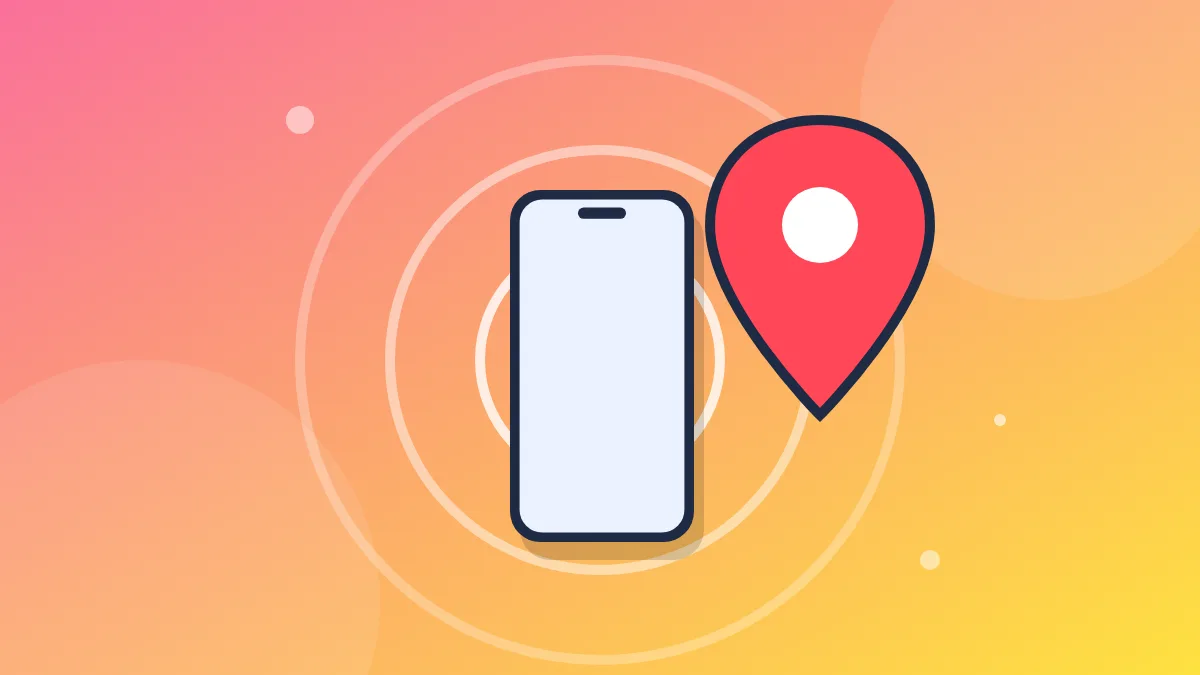
Realizing your phone is missing is a stomach-drop moment. Both iPhone and Android have powerful built-in tools to help you find it, often even if it's offline or the battery has died. This guide covers what to do right now, plus the settings to turn on today so you're ready if it ever happens.
If you've lost your iPhone
Use Find My from another device
- On a computer or another phone, go to icloud.com/find and sign in with your Apple Account. Or open the Find My app on another Apple device, such as an iPad, Mac, or a family member's iPhone.
- Select your iPhone from the device list.
- You'll see its location on a map, if it's available.
Choose what to do next
- Play Sound: Your iPhone will play a sound, even if it's on silent. Great for when it's in the couch cushions.
- Directions: Get directions to where it is (in the Find My app).
- Mark As Lost (Lost Mode): Locks your iPhone with your passcode, shows a custom message and phone number on the screen, and suspends Apple Pay cards. Use this if you think it's lost somewhere outside your home or stolen.
- Erase This Device: A last resort. It wipes your iPhone. After erasing, you can't locate it anymore through Find My, but Activation Lock still prevents someone else from using it.
What if it's offline or the battery is dead?
On supported iPhones with Find My network turned on, a lost iPhone can still be located when it's offline by using nearby Apple devices that securely and anonymously relay its location. Some models can even be found for a period after the battery dies or the phone is powered off. If the phone can't be located, you'll see its last known location.
Turn these on today
- Go to Settings, tap your name, then Find My > Find My iPhone.
- Turn on Find My iPhone.
- Turn on Find My network.
- Turn on Send Last Location, which sends the location to Apple when the battery is critically low.
Also consider Stolen Device Protection (Settings > Face ID & Passcode > Stolen Device Protection), which adds extra security when your iPhone is away from familiar locations.
If you've lost your Android phone
Use Google Find My Device
- On a computer or another phone, go to google.com/android/find and sign in with the Google account on your lost phone. Or use the Find My Device app on another Android device. (If you can't install an app, you can sign in as a guest in the app on someone else's phone.)
- Select your phone.
- You'll see its location on a map, if available.
Choose what to do next
- Play sound: Rings your phone at full volume for a few minutes, even if it's on silent.
- Secure device: Locks your phone and lets you show a message or phone number on the lock screen.
- Factory reset device: Erases your phone. After this, you can't locate it through Find My Device anymore.
What if it's offline?
Google's Find My Device network can help locate supported Android devices when they're offline using other nearby Android devices, in a privacy-protecting way. Availability depends on your phone, Android version, and settings. Some newer phones can even be found for a while after they're powered off.
Turn these on today
- Go to Settings > Google > All services > Find My Device (on some phones, Settings > Security > Find My Device).
- Make sure Find My Device is on.
- Tap Find your offline devices and choose a setting other than Off.
- Make sure Location is turned on in Settings > Location.
Samsung users can also use SmartThings Find for additional features on Galaxy devices.
Tips for both iPhone and Android
- Act quickly. The sooner you look, the more accurate the location and the more battery your phone has left.
- Ring it first if the map shows it nearby.
- Use lost mode or secure device before erasing, so you can keep tracking it.
- Don't try to recover a stolen phone yourself. If you believe it was stolen, contact local police and give them the location information. Don't go to the location alone.
- Contact your carrier if it's stolen, to suspend service and prevent misuse of your number.
- Change important passwords if you think someone could access your accounts, and review your banking apps.
- Report it to Apple or Google as part of any insurance claim, if you have phone insurance.
Be prepared before it happens
- Use a strong passcode and biometric lock (Face ID, Touch ID, or fingerprint).
- Keep backups on (iCloud Backup, or Google One backup on Android) so losing the phone doesn't mean losing your data.
- Write down your account details somewhere safe so you can sign in from another device in an emergency.
- Consider a tracker for your keys and bag. Apple AirTags and Android-compatible trackers use the same finding networks to help locate other things you carry.
Quick checklist
- iPhone: Find My iPhone, Find My network, and Send Last Location all on
- Android: Find My Device on, offline finding enabled, Location on
- Know how to sign in at icloud.com/find or google.com/android/find
- Keep backups turned on
Taking two minutes to check these settings today can save you a lot of stress later.