How to Record Your Screen on iPhone
Learn how to add Screen Recording to Control Center, start and stop a recording, turn the mic on, and find your video in Photos.
This post contains affiliate links. As an Amazon Associate I earn from qualifying purchases. Affiliate disclosure.
Need to show someone how an app works, capture a bug, or save a short clip from your screen? Your iPhone already has a built-in screen recorder. No extra app required. Here's how to turn it on, record with or without your voice, and find the video afterward.
Add Screen Recording to Control Center
If you don't see a round Record button in Control Center, add it once:
- Open the Settings app.
- Tap Control Center.
- Find Screen Recording and tap the green + to add it.
On recent iOS versions you can also customize Control Center on the fly: swipe down from the top-right corner, touch and hold an empty spot, tap Add a Control, and search for Screen Recording.
Start and stop a recording
- Swipe down from the top-right corner to open Control Center.
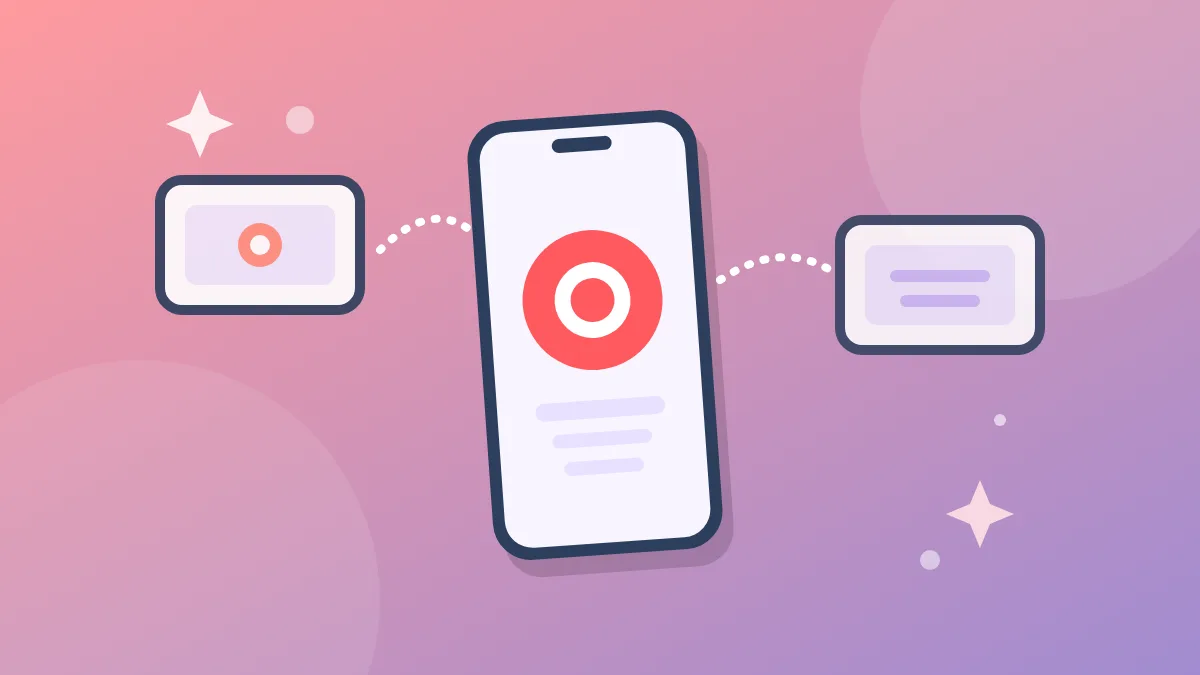
- Tap the Screen Recording button (a circle inside a circle).
- Wait for the three-second countdown, then swipe up to leave Control Center and do whatever you want to capture.
- To stop, tap the red status indicator at the top of the screen (or the red circle in the Dynamic Island on supported models), then tap Stop. You can also reopen Control Center and tap the red Record button.
Your recording lands in the Photos app automatically.
Record with your voice (microphone)
By default, screen recording captures sounds from apps but not your voice. To narrate:
- Open Control Center.
- Touch and hold the Screen Recording button.
- Tap Microphone so it turns on (it usually turns red).
- Tap Start Recording, wait for the countdown, and begin talking.
Turn the mic off the same way when you only want system audio.
Where to find your recordings
Open Photos, then look in your library for the newest video. On current iOS you can also go to Photos > Collections, scroll to Media Types, and tap Screen Recordings to see only those clips.
Tips for cleaner recordings
- Turn on Do Not Disturb or another Focus before you start so banners and calls don't pop over your demo.
- Close apps you don't need, and hide the keyboard if it's in the way.
- Keep clips short when you can. Long recordings eat storage and take longer to share.
- Some apps block screen recording for privacy (banking and streaming apps often do). If you get a black screen in the video, that app is the reason.
Optional gear for steadier demos
If you're recording a how-to while talking, a simple phone tripod with a remote keeps the framing steady, and a small Bluetooth mic can sound clearer than holding the phone up to your face.
Shop the gear
A tripod and an external mic aren't required for basic screen recordings, but they help when you're filming longer tutorials or voiceovers.
Add Screen Recording to Control Center once, tap to start, and you'll always have a quick way to capture what's on your iPhone.